
Loading...
Ebook details
Log in if you are interested in the contents of the item.
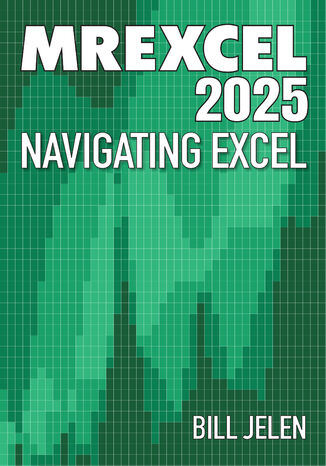
MrExcel 2025. Navigating Excel
MrExcel's Holy Macro! Books, Bill Jelen
Loading...
EBOOK
Loading...
This book serves as the definitive 2025 guide to mastering Excel’s evolving ecosystem. It introduces groundbreaking features like Copilot integration, Python scripting, and AI-driven data analysis while reinforcing timeless tools such as PivotTables, Power Query, and macros. Readers progress through a curated sequence of practical examples and expert insights that show how to blend automation, analytics, and collaboration in real business contexts.
With a focus on modern efficiency, the book bridges the gap between foundational Excel operations and cutting-edge tools that redefine productivity in the Microsoft 365 landscape. Readers learn not just how to execute features, but how to use them strategically for intelligent reporting, forecasting, and decision-making.
By the end, readers will have an up-to-date command of Excel’s most innovative tools, capable of optimizing performance and extracting deeper insights from data across the Microsoft 365 environment.
With a focus on modern efficiency, the book bridges the gap between foundational Excel operations and cutting-edge tools that redefine productivity in the Microsoft 365 landscape. Readers learn not just how to execute features, but how to use them strategically for intelligent reporting, forecasting, and decision-making.
By the end, readers will have an up-to-date command of Excel’s most innovative tools, capable of optimizing performance and extracting deeper insights from data across the Microsoft 365 environment.
- 1. Double-Click the Fill Handle to Copy a Formula
- 2. Break Apart Data
- 3. Convert Text Numbers to Numbers Quickly
- 4. Highlight the Active Cell with Focus Cell
- 5. Filter by Selection
- 6. Total the Visible Rows
- 7. The Fill Handle Does Know 1, 2, 3…
- 8. Fast Worksheet Copy
- 9. Use Default Settings for All Future Workbooks
- 10. Recover Unsaved Workbooks
- 11. Search While Using File Open
- 12. Show Changes From Last One Year
- 13. Add Interactive Checkboxes in Excel
- 14. Simultaneously Edit a Workbook in Microsoft 365
- 15. Save Filter & Sorting in Sheet View
- 16. Threaded Comments Allow Conversations
- 17. Create Perfect One-Click Charts
- 18. Paste New Data on a Chart
- 19. Create Interactive Charts
- 20. Show Two Different Orders of Magnitude on a Chart
- 21. Create Waterfall Charts
- 22. Create Filled Map Charts
- 23. Create a Bell Curve
- 24. Plotting Employees on a Bell Curve
- 25. Add Meaning to Reports Using Data Visualizations
- 26. Use People to Add Interest to Your Worksheet
- 27. Save Any Object as an Image
- 28. Display Online Pictures In a Cell Using a Formula
- 29. Place Pictures In Cell From Local Computer
- 30. Set Up Your Data for Data Analysis
- 31. Sort East, Central, and West Using a Custom List
- 32. Sort Left to Right
- 33. Sort Subtotals
- 34. Sort and Filter by Color or Icon
- 35. Consolidate Quarterly Worksheets
- 36. Create Your First Pivot Table
- 37. Show Details Behind Any Value Cell
- 38. Create a Year-over-Year Report in a Pivot Table
- 39. Change the Calculation in a Pivot Table
- 40. Find the True Top Five in a Pivot Table
- 41. Specify Defaults for All Future Pivot Tables
- 42. Make Pivot Tables Expandable Using Ctrl+T
- 43. Replicate a Pivot Table for Each Rep
- 44. Use a Pivot Table to Compare Lists
- 45. Build Dashboards with Sparklines and Slicers
- 46. See Why GETPIVOTDATA Might Not Be Entirely Evil
- 47. Eliminate VLOOKUP or XLOOKUP with the Data Model
- 48. Pivot Table with Sum and Average Total Rows (MDX)
- 49. Compare Budget Versus Actual via Power Pivot
- 50. Slicers for Pivot Tables From Two Data Sets
- 51. Using Python in Excel
- 52. Python for K-Means Clustering of Excel Data
- 53. Excel Formula to Send Prompts to AI
- 54. Ask Excel's A.I. a Question About Your Data
- 55. Introduction to Copilot in June 2025
- 56. Hide the Floating Copilot Icon and Start With Copilot Prompt
- 57. Explore Start With Copilot – Excel's New Way to Launch
- 58. Copilot Can Search the Web and Download Data
- 59. Use Copilot to Extract Data From an Image
- 60. Generate Fake Data with Python in Excel
- 61. Clean Data with Copilot
- 62. Regular Copilot in Excel
- 63. Let Copilot Write Python Code for You in Excel
- 64. Regular Copilot Tasks Do Not Work in Advanced Analysis
- 65. Create 10 Visualizations with Think Deeper
- 66. View all Python Code in the Python Editor
- 67. Your Chat History is Barely Available, and Only to You
- 68. Using Copilot for Text Sentiment Analysis
- 69. Create a Custom Agent For Use in Excel
- 70. Use Copilot to Instantly Summarize any YouTube Video
- 71. Copilot in OneDrive to Analyze Financial Statements
- 72. Fixing Excel Functions Without Breaking the Past
- 73. TRIMRANGE or Dot Notation for Dynamic Ranges
- 74. Use F4 for Absolute Reference or Repeating Commands
- 75. Quickly Convert Formulas to Values
- 76. See All Formulas at Once
- 77. Audit a Worksheet With Spreadsheet Inquire
- 78. Discover New Functions by Using fx
- 79. Use Function Arguments for Nested Functions
- 80. Calculate Nonstandard Work Weeks
- 81. Turn Data Sideways with a Formula
- 82. Handle Multiple Conditions in IF
- 83. Pattern Matching with RegEx
- 84. Troubleshoot VLOOKUP
- 85. Use a Wildcard in VLOOKUP or XLOOKUP
- 86. Twelve Benefits of XLOOKUP
- 87. Preview What Remove Duplicates Will Remove
- 88. Replace Nested IFs with a Lookup Table
- 89. Suppress Errors with IFERROR
- 90. Handle Plural Conditions with SUMIFS
- 91. Geography, Exchange Rate & Stock Data Types in Excel
- 92. Get Historical Stock History from STOCKHISTORY
- 93. Create Your Own Data Types
- 94. TRANSLATE and DETECTLANGUAGE
- 95. Dynamic Arrays Can Spill
- 96. Sorting with a Formula
- 97. Filter with a Formula
- 98. Formula for Unique or Distinct
- 99. Other Functions Can Now Accept Arrays as Arguments
- 100. One Hit Wonders with UNIQUE
- 101. SEQUENCE inside of other Functions such as IPMT
- 102. Generating Random Numbers in Excel
- 103. Create a Summary Table With the GROUPBY Function
- 104. Moving from GROUPBY to PIVOTBY
- 105. Calculate Percent of Total with PERCENTOF Function
- 106. Dependent Validation using Dynamic Arrays
- 107. Complex Validation Using a Formula
- 108. Stack Multiple Arrays
- 109. Dropping, Taking, or Choosing from an Array
- 110. Reshaping an Array to a Vector and Back
- 111. Getting the UNIQUE of a Rectangular Range
- 112. Shuffling and Dealing a Deck of Cards
- 113. Use A2:INDEX() as a Non-Volatile OFFSET
- 114. Number the Visible Rows in a Filtered Data Set
- 115. Unhide Multiple Worksheets
- 116. Write Your Data with the Action Pen
- 117. Draw Perfect Shapes Using the New Draw-and-Hold Gesture
- 118. Many Task Panes Now Collapse into a Tab Strip
- 119. How to Provide Usable Feedback to the Excel Team
- 120. Date Tricks in Excel
- 121. Use the LET Function to Re-Use Variables in a Formula
- 122. Store Complex Formula Logic in LAMBDA function
- 123. Combining Subformulas into a Single Lambda
- 124. New LAMBDA Helper Functions
- 125. Find Largest Value That Meets One or More Criteria
- 126. Text Before or After a Specific Delimiter
- 127. Split Text into Words Using TEXTSPLIT
- 128. Less CSV Nagging
- 129. Better AutoComplete
- 130. Protect All Formula Cells
- 131. Back into an Answer by Using Goal Seek
- 132. Do 60 What-If Analyses with a Sensitivity Analysis
- 133. Find Optimal Solutions with Solver
- 134. Interpolate between a Starting and Ending Number
- 135. Improve Your Macro Recording
- 136. Clean Data with Power Query
- 137. Use Fuzzy Match in Power Query
- 138. Data From Picture is Not Power Query
- 139. Build a Pivot Table on a Map Using 3D Maps
- 140. The Forecast Sheet Can Handle Some Seasonality
- 141. Fill in a Flash
- 142. Format as a Façade
- 143. Show All Open Workbooks in the Windows Taskbar
- 144. Paste to Another Computer Using Cloud Clipboard
- 145. Surveys & Forms in Excel
- 146. Use the Windows Magnifier
- 147. New Scrolling Tricks
- 148. Prevent Default Conversions
- 149. Check Performance in Excel
- 150. See Intermediate Calculations
- 151. Stale Value Formatting
- 152. Sort by Font Width?!
- 153. Get the Countries from a Column of Phone Numbers
- 154. Word for Excellers
- 155. Avoid Whiplash with Speak Cells
- 156. Temporarily Make Formula Bar Font Size Larger
- 157. Circle Invalid Data Automatically
- 158. The Advanced Filter Treats Criteria as Begins With
- 159. Generate All Combinations Using BASE Function
- 160. Why a Dark Rectangle Around the Formula Bar?
- 161. High Contrast Color Picker Avoids Accessibility Issues
- 162. Unhide One Specific Column Without Unhiding Others
- 163. How to Enable ActiveX Controls
- 164. Using the Date Picker in Excel Online
- 165. Export a PDF from Excel (Even Just One Page!)
- 166. Customize the Quick Access Toolbar
- 167. Create Your Own QAT Routines Using VBA Macros
- 168. Favorite Keyboard Shortcuts
- 169. Ctrl+Click to Unselect Cells
- 170. Collapse the Search Box
- 171. More Excel Tips
- 172. The MrExcel Message Board
- Title:MrExcel 2025. Navigating Excel
- Author:MrExcel's Holy Macro! Books, Bill Jelen
- Original title:MrExcel 2025. Navigating Excel
- ISBN:9781806389568, 9781806389568
- Date of issue:2025-10-29
- Format:Ebook - EPUB
- Item ID: e_4mcw
- Publisher: Holy Macro Books
Loading...
Loading...